Before you start
Open this guide on your Mac or keep it nearby on another device. The screenshots below show the current macOS flow, including the browser download, the drag-to-Applications window, and the first launch confirmation.
This is a friendly quick-start guide for macOS users. Current SlideScope builds are signed and notarized, so the normal install is: open the DMG, drag SlideScope into Applications, launch it, and click Open on the first macOS confirmation.
Open this guide on your Mac or keep it nearby on another device. The screenshots below show the current macOS flow, including the browser download, the drag-to-Applications window, and the first launch confirmation.
If you are not sure which Mac download to pick, click the Apple menu in the top-left corner of your screen and choose About This Mac.
After that, return to the download form and select the matching Mac type.
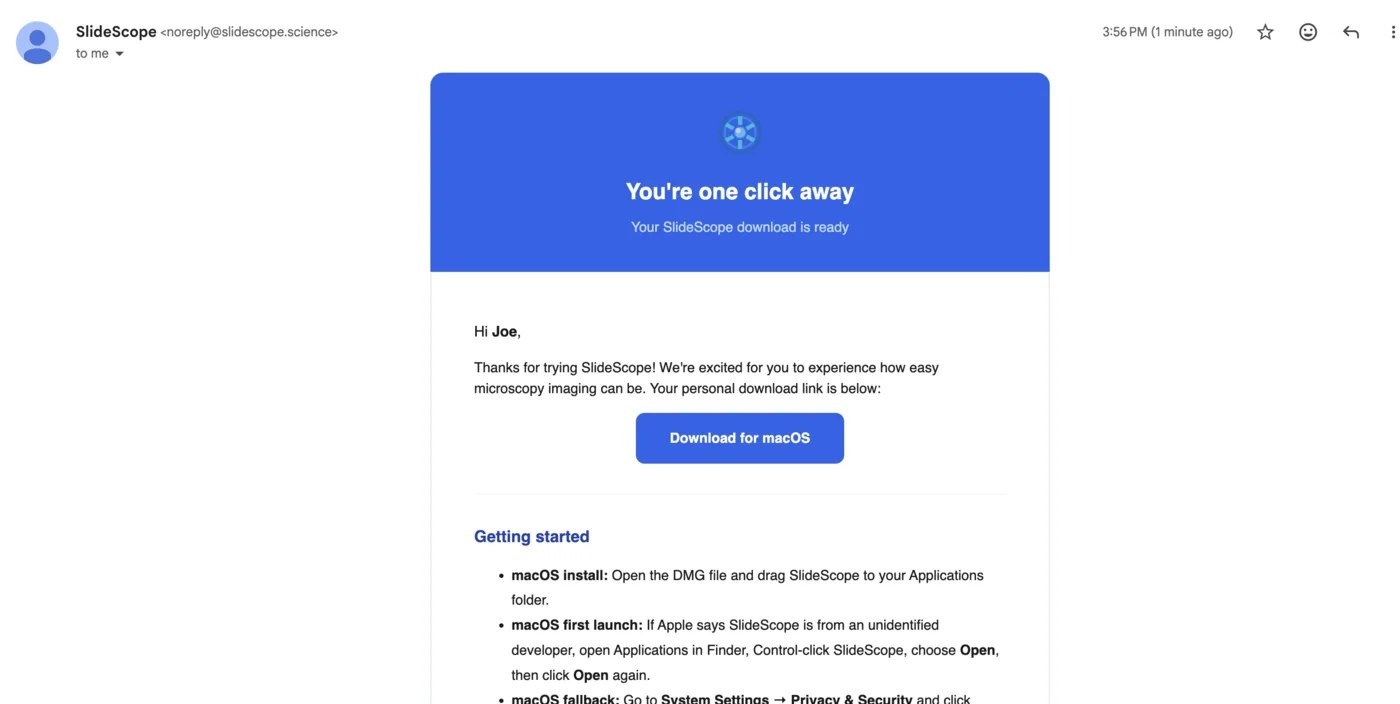
When you request SlideScope, we send you an email with your personal download link. Open that email and click the Download for Mac button.
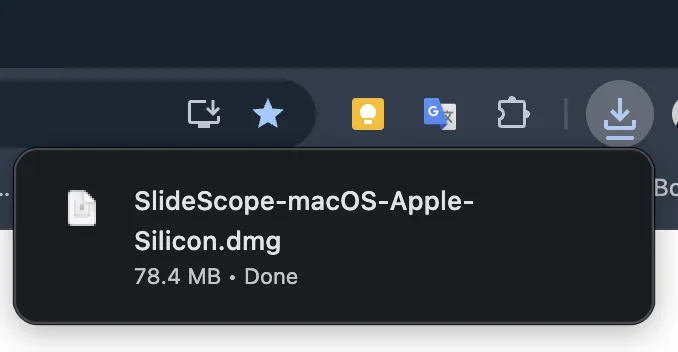
When the browser shows the SlideScope DMG is done downloading, click the downloaded file. You can also open it later from your Downloads folder.
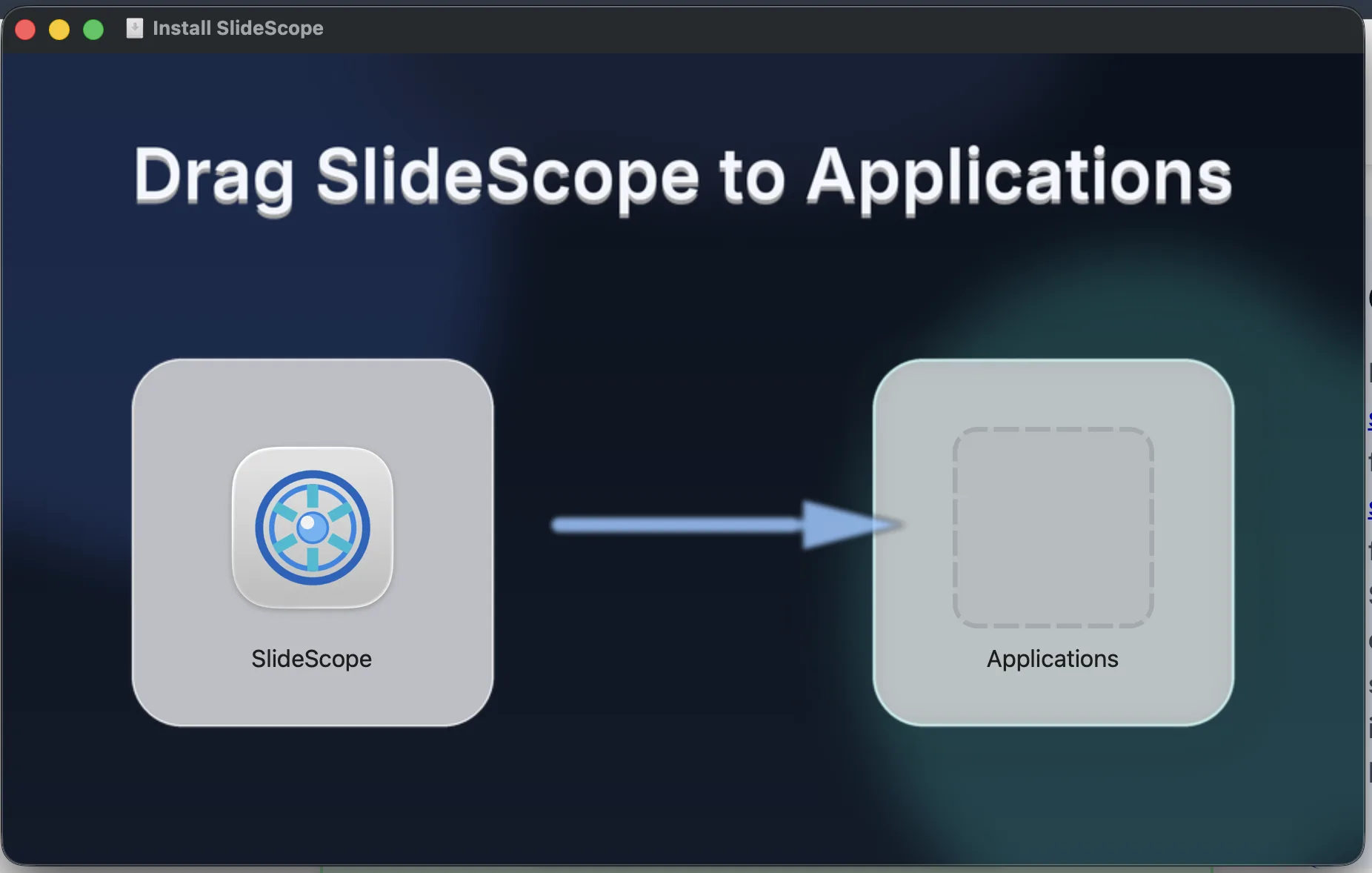
The installer window opens after the DMG launches. Drag the SlideScope icon onto the Applications folder, then wait for the copy to finish.
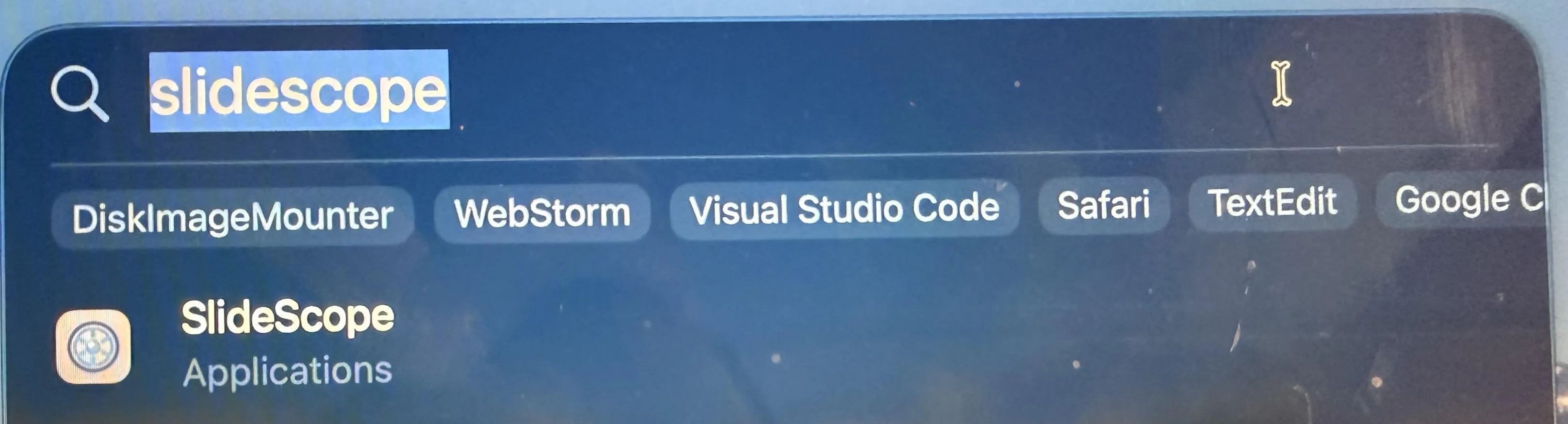
After SlideScope is copied to Applications, open it from there. A quick way is to press Command-Space, type SlideScope, and choose the SlideScope app listed under Applications.
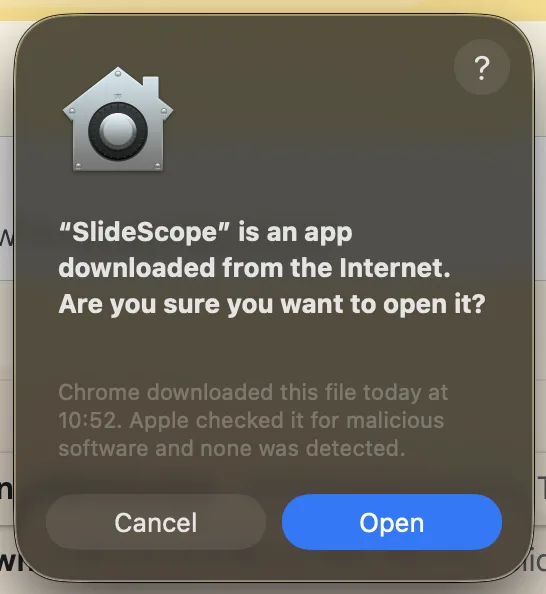
The first time you launch SlideScope, macOS may say the app was downloaded from the Internet. Click Open. This is the expected confirmation for a signed app downloaded outside the App Store.
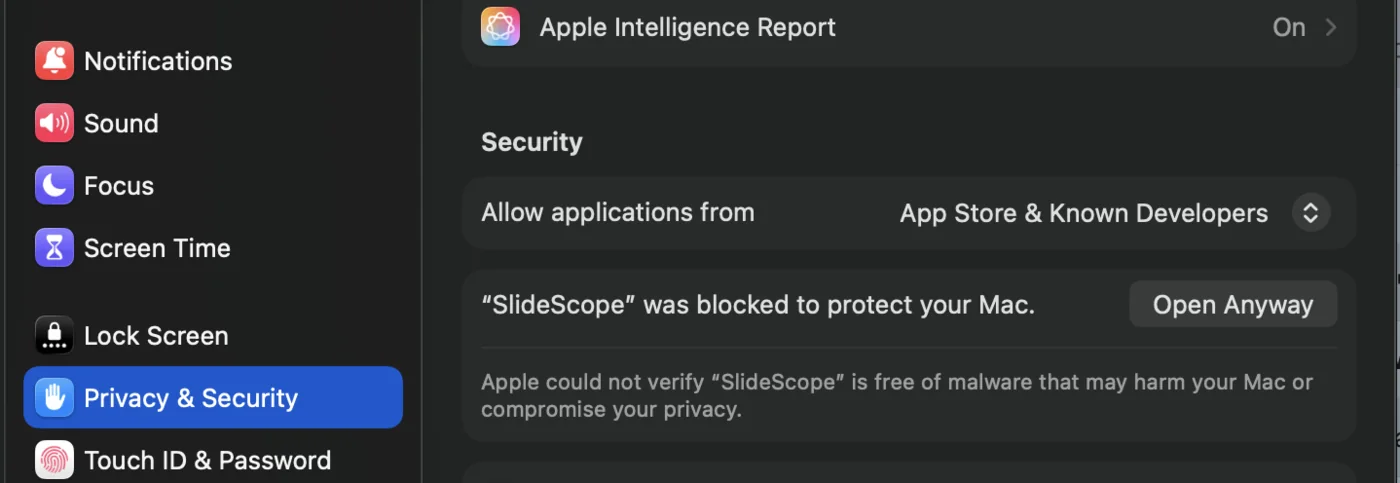
If macOS shows a stronger warning instead of the blue Open button, open System Settings → Privacy & Security. Near the SlideScope warning, click Open Anyway.
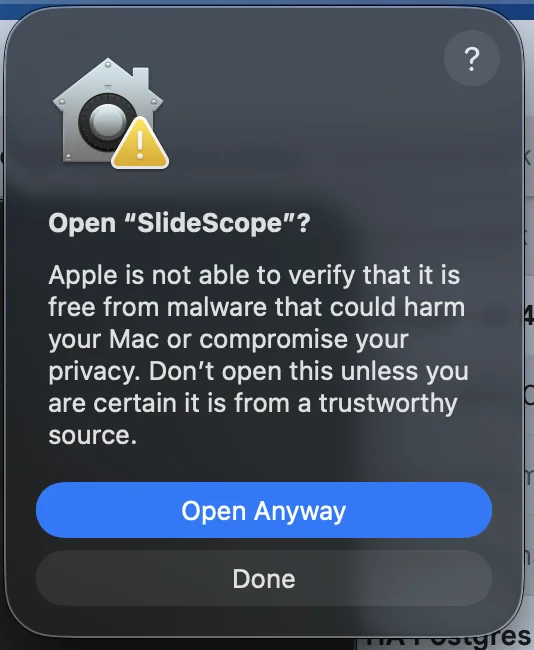
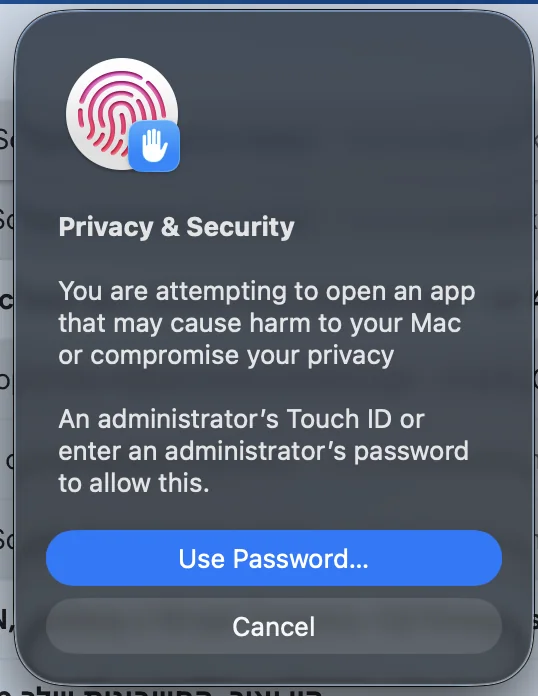
macOS may ask you one more time if you want to open SlideScope. Click Open Anyway. If Apple asks for approval, use Touch ID or enter an administrator password to finish.
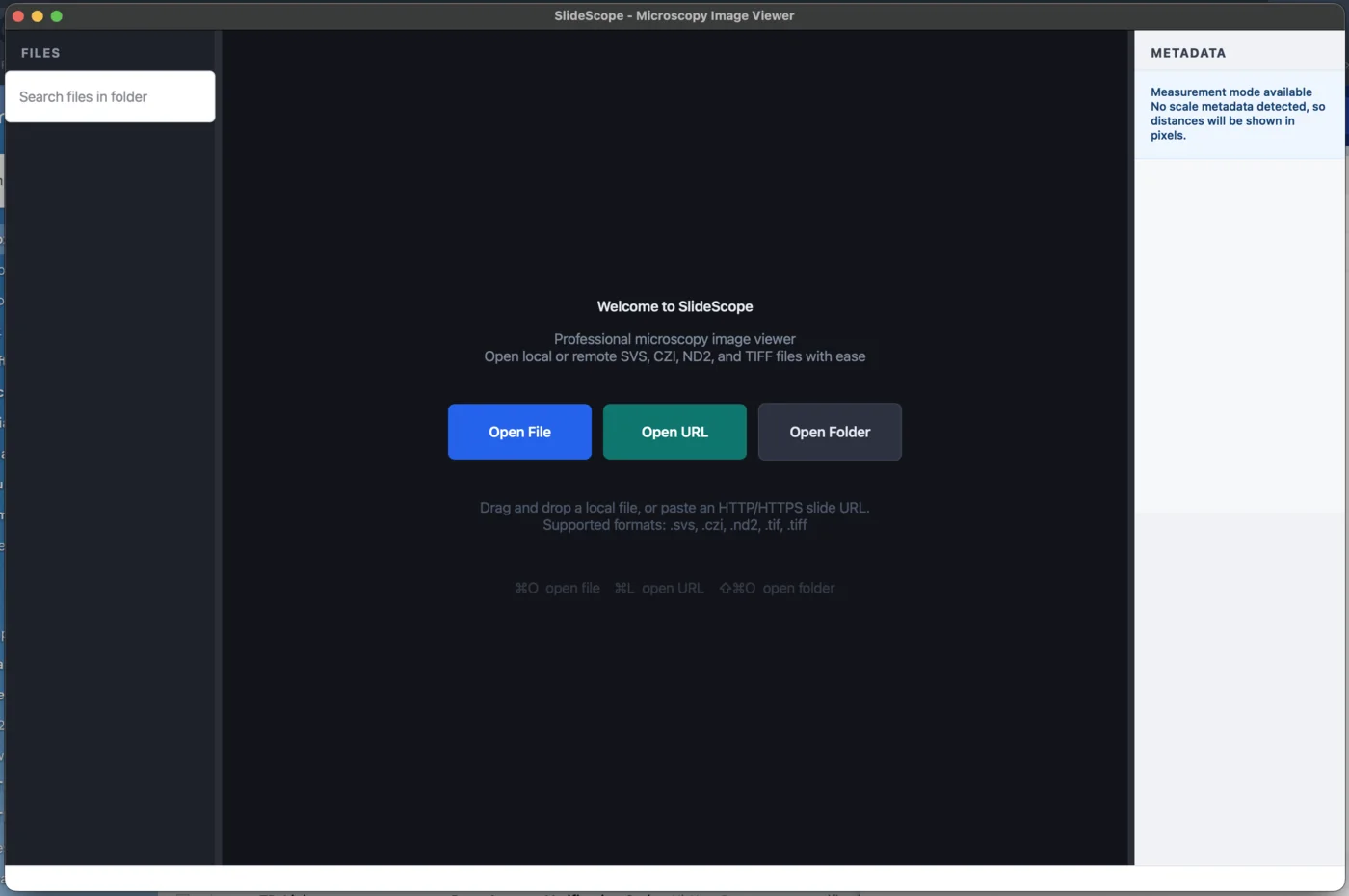
After clicking Open, or after the fallback approval if your Mac needed it, SlideScope opens normally. From there you can start loading microscopy files right away.
Try opening SlideScope once from Applications first. After macOS blocks it, return to System Settings → Privacy & Security and the button should appear near the warning.
That is normal on some Macs. Use an administrator password or Touch ID to approve the app the first time.
Yes. Email support@slidescope.science and include a screenshot of what you see on your Mac.
Request the macOS build, then come back here if you want a calm step-by-step install walkthrough.