Windows guide

How to Download and Install SlideScope on Windows

This is a friendly quick-start guide for Windows users. If Windows shows a security warning on first launch, that is expected right now, and this page walks you through exactly what to click.

About 2 minutes Windows 10 or 11 No technical setup

Before you start

Make sure you have the SlideScope email open on your Windows computer. Keep this page open in another tab if you want to follow the screenshots while you install.

Friendly note: if Windows shows a blue protection screen, you do not need to panic. It is the standard SmartScreen warning, and this guide shows the exact buttons to use.
Step 1

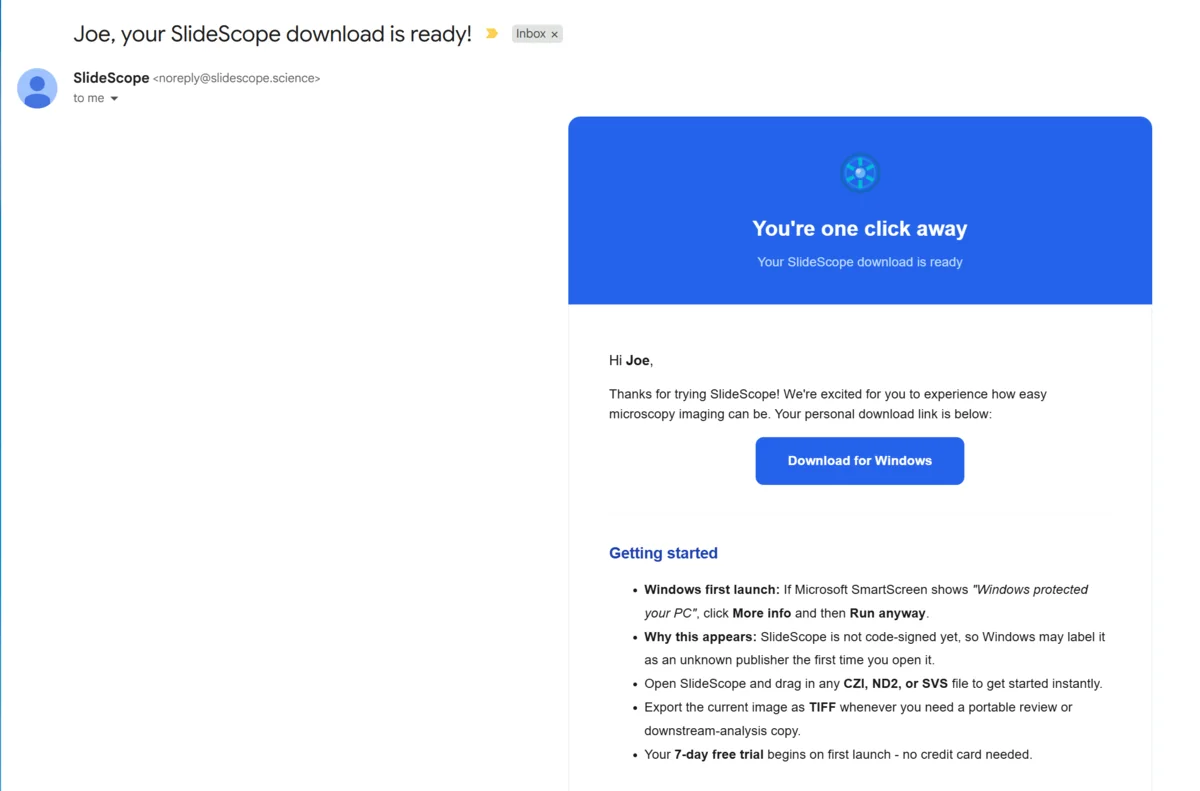
Open the SlideScope email and click the download button

When you request SlideScope, we send you an email with the download link. Open that email and click the Windows download button.

SlideScope email with the Windows download button visible.
Step 2

Open the downloaded file

After the download finishes, click the downloaded file from your browser bar or open it from your Downloads folder.

Downloaded SlideScope file shown in the browser download bar.
Step 3

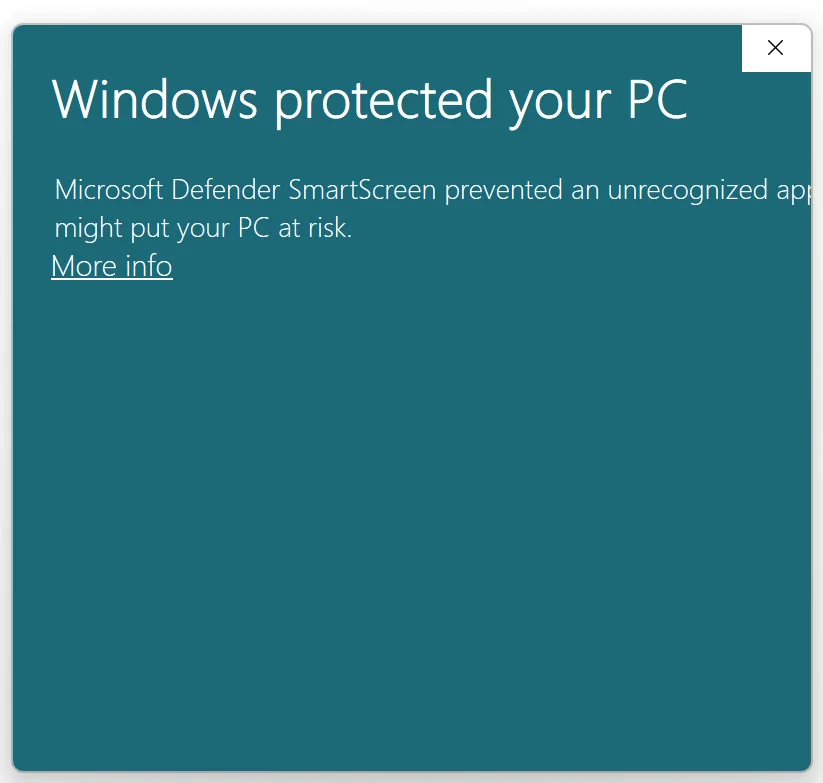
If Windows protects your PC, click More info

Windows SmartScreen may show a protection screen the first time you open SlideScope. This is expected. Click More info to reveal the next option.

Windows protected your PC dialog with More info visible.
Step 4

Click Run anyway

After you click More info, Windows shows the app name and a Run anyway button. Click it to continue opening the SlideScope installer.

Windows SmartScreen dialog showing the Run anyway button for SlideScope.
Step 5

Choose your install folder, then launch SlideScope

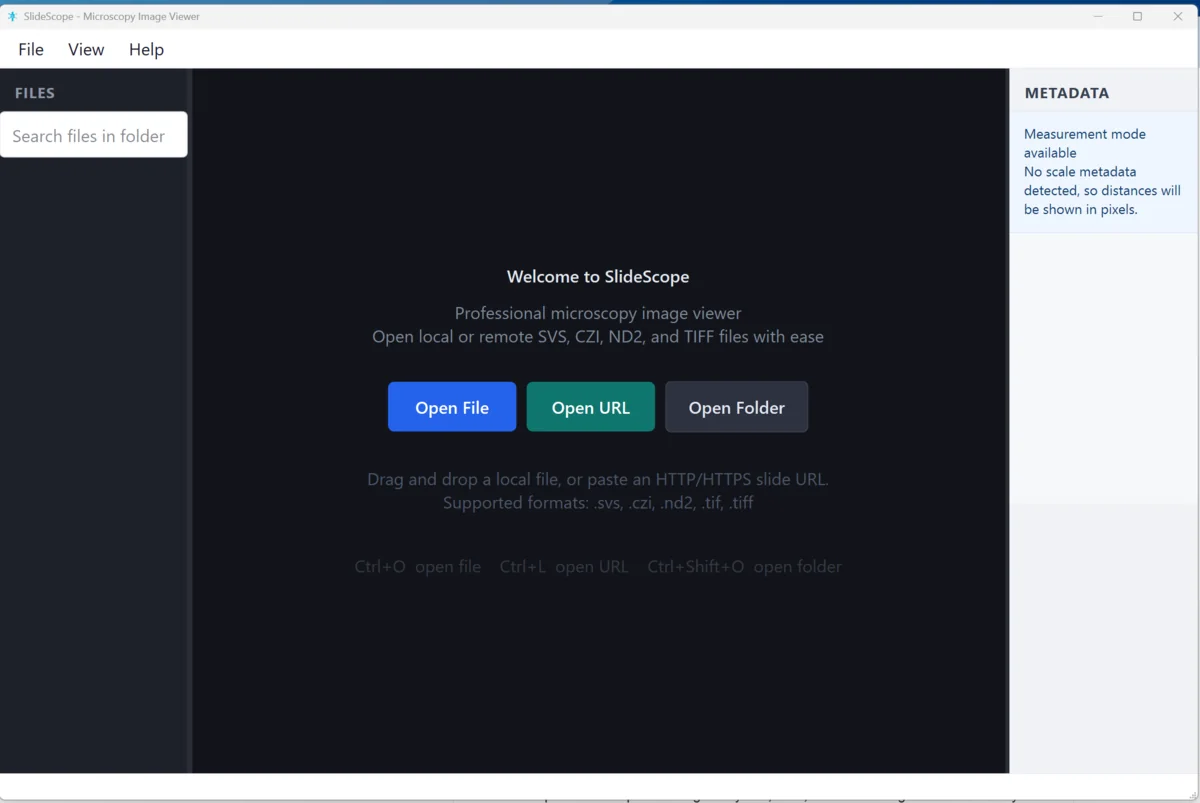
Once Windows allows the installer to run, you can keep the default install location or choose your own folder. Finish the installer, launch SlideScope, and you should not need to repeat the SmartScreen flow after that.

SlideScope open on Windows after clicking Run anyway.

If something still blocks the app

I do not see the download file after clicking the email link

Check your browser downloads list or the Windows Downloads folder. You can also request a fresh link from the SlideScope download form.

Windows still does not show Run anyway

Make sure you clicked More info on the SmartScreen screen first. If the option still does not appear, email support and we will help directly.

Can I ask for help?

Yes. Email support@slidescope.science and include a screenshot of what you see on your Windows machine.

Need the download link first?

Request the Windows build, then come back to this page if you want a calm step-by-step install walkthrough.

Request Windows Download