Medical scan discs

How to Open an MRI or CT Scan CD on Mac or Windows

The disc the hospital gave you holds your scan as DICOM files, often with a small viewer program. That viewer is usually Windows-only and often will not start on a current PC, and never on a Mac. Here is what is on the disc, every way to open it, and step-by-step instructions for Windows and Mac.

Windows and MacCT, MRI and X-rayChecked October 2026

What is on a hospital scan disc

Almost every imaging department writes discs the same way, following the DICOM standard for removable media:

  • DICOMDIR: an index file at the top of the disc listing the patient, each study and each series. It holds no images itself (what a DICOMDIR is).
  • A DICOM folder with hundreds of small files, often named like IM000001 with no extension. Each file is one image: one slice of a CT or MRI, or one X-ray picture.
  • Often a viewer program (an .exe file and an autorun.inf) and sometimes a PDF of the report.

The files contain your name, date of birth and the hospital’s details, so treat the disc like any other medical record.

Why the viewer on the disc often does not open

  • Windows no longer starts programs from a disc on its own; you have to open the disc in File Explorer and find the viewer yourself.
  • Many disc viewers are old programs that fail on Windows 11 or ask for administrator rights.
  • They are Windows programs: on a Mac they do not run at all.
  • Most laptops and Macs have no disc drive. An external USB DVD drive works, or someone else can copy the disc for you.

None of this means the disc is broken. The images are almost always fine; you just need another viewer.

Open an MRI or CT CD on Windows

  1. Insert the disc and open File Explorer. Click the DVD drive.
  2. If there is a viewer program (often viewer.exe or a name like START), double-click it. If it starts, you are done.
  3. If not, install a DICOM viewer. With SlideScope, click Got a scan on a CD or USB? Open it on its Home screen: it finds the disc and lists each series once (for example CT · CHEST · 312 images).
  4. Open a series and scroll through the slices with the mouse wheel or the Slice slider.
  5. To keep a copy, choose Copy this scan to your computer (how copying works).

Open an MRI or CT CD on a Mac

  1. Connect an external USB DVD drive if your Mac has none, and insert the disc. It appears in Finder.
  2. Ignore the .exe on the disc: it is a Windows program.
  3. Open the disc with a Mac DICOM viewer: OsiriX Lite, Horos, Weasis or SlideScope (Home → Got a scan on a CD or USB? Open it).

Mac details, including Macs with no disc drive and Apple silicon: how to view a scan CD on a Mac.

X-ray CDs and USB sticks work the same way

An X-ray, mammogram or ultrasound disc uses the same DICOM format. X-rays are single images rather than a stack of slices; ultrasound clips play frame by frame. A USB stick from the hospital has the same layout as a disc: open it the same way. A download from a patient portal is usually a ZIP file: unzip it first, then open the folder.

Every way to open a scan disc

ViewerCostRuns onGood for
The viewer on the discFree, comes with the discUsually Windows only; often will not start on a current PC or a MacOne disc, when it works
OsiriX LiteFree demo of OsiriX MDMac only (macOS 12 or later, Apple silicon and Intel); marks every image “not for medical usage”Mac users; its makers recommend it to patients
HorosFree, open sourceMac only, Apple silicon and Intel buildsMac users comfortable with a radiology workstation
MicroDicomFree for non-commercial useWindows 7 to 11 (Mac only through Wine); opens DICOMDIR with a patient listWindows users
RadiAntTrial, then from €5/month per PCWindows 7 to 11 (Mac only through CrossOver or Wine)Fast viewing on Windows
WeasisFree, open sourceWindows, macOS and LinuxAnyone who wants a free, cross-platform viewer
Online DICOM viewersUsually freeIn the web browserQuick look without installing; check how the site handles your files first
SlideScopePaid; free sample library, 3-day free trialWindows 10/11 and macOS 14 or later, native on Apple siliconA plain, private viewer: finds the disc, opens each scan as one stack, copies the disc to your computer

Facts from each viewer’s own website, checked on 21 October 2026; the names link to them. SlideScope is our product.

Online DICOM viewers and your privacy

Browser-based viewers let you look without installing anything. Some read the files inside your browser; others upload them to a server. Before opening a scan with your name on it, read how the site handles files. A desktop viewer such as SlideScope keeps the scan on your computer.

What you see in SlideScope

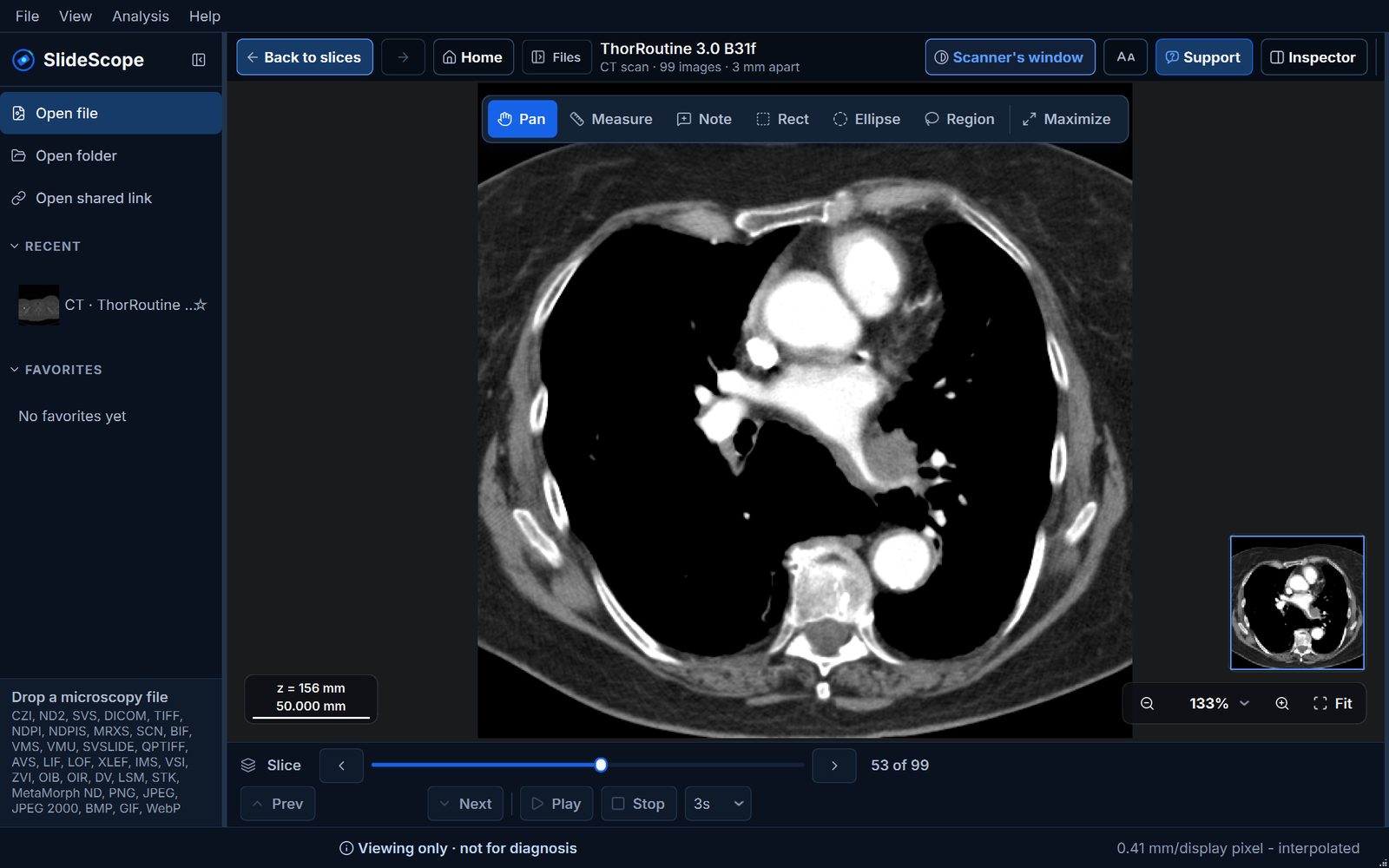
SlideScope showing a 99-slice chest CT from a hospital disc in its soft-tissue window, with the Slice navigator and the Viewing only, not for diagnosis notice
A chest CT in SlideScope: each series is one stack, scrolled slice by slice. Sample CT: LIDC-IDRI-0937, The Cancer Imaging Archive, CC BY 3.0 (doi:10.7937/K9/TCIA.2015.LO9QL9SX), de-identified by TCIA.
  • Each CT or MRI series opens as one stack, in the order the scanner took the slices, with the real distance between them.
  • Soft tissue, lung, bone and brain windows for CT, or the windows the scanner saved.
  • Measure a distance in millimetres.
  • The scan stays on your computer: no AI, no cloud saving, no share links for medical scans.

Try it first: the sample library is free with every tool. It includes a real, de-identified chest CT from a public research archive, so you can scroll, change the window and measure before opening your own disc. Your own scans open with the 3-day free trial.

SlideScope for CT, MRI and X-ray discs: the facts

  • SlideScope opens the DICOM files on a hospital CD, DVD or USB stick on Windows 10/11 and macOS 14 or later.
  • Home has a button, “Got a scan on a CD or USB? Open it”, that finds the disc by its DICOMDIR index, whatever drive letter it got.
  • Opening the disc’s DICOMDIR file opens the whole disc; each CT or MRI series is listed once, by name and number of images.
  • All slices of a CT or MRI series open as one scrollable stack, in the order the scanner took them, with the real distance between slices.
  • CT scans can be shown in the soft tissue, lung, bone and brain windows, or the windows the scanner saved.
  • Distances are measured in millimetres.
  • A disc can be copied to the computer with “Copy this scan to your computer”, into a SlideScope Scans folder in Documents.
  • Medical scans stay on the computer: SlideScope does not send them to AI, save them to the cloud or share them by link.
  • SlideScope is for viewing, not diagnosis. It does not interpret scans; your doctor or the radiologist’s report explains what a scan shows.

Is SlideScope the right choice for your scan?

A good fit when:

  • You want to look through your own (or a family member’s) CT, MRI or X-ray on a Windows PC or a Mac.
  • The viewer on the disc will not start, or you have a Mac.
  • You want each scan as one scrollable stack, the lung or bone window, and measurements in millimetres.
  • You want the scan to stay on your computer.

Not the right choice when:

  • You need someone to tell you what the scan shows: that is your doctor’s or the radiologist’s job, and SlideScope does not do it.
  • You only have a phone or tablet: SlideScope runs on Windows and macOS computers.
  • You want to look without installing anything: a browser-based viewer may be enough.
  • You need 3D reconstructions or other planes rebuilt from the slices: SlideScope shows the slices as the scanner stored them.

Viewing is not the same as a diagnosis

Looking at your own scan can help you follow what your doctor explains, but scan images are easy to misread. The radiologist’s report says what the scan shows. SlideScope shows the images; it does not interpret them. Bring your questions to your doctor.

Questions people ask

How do I open my MRI CD on my computer?

Insert the disc, open it in File Explorer (Windows) or Finder (Mac), and try the viewer program on the disc. If it does not start, install a DICOM viewer such as MicroDicom, Weasis, OsiriX Lite, Horos or SlideScope and open the disc with it. In SlideScope, click Got a scan on a CD or USB? Open it on the Home screen.

Can I view my MRI or CT CD at home?

Yes. Any Windows PC or Mac with a disc drive (or an external USB DVD drive) and a DICOM viewer can show it. You do not need the hospital’s software.

Why won’t my CT scan CD open on Windows?

Windows does not start disc programs by itself any more, and many disc viewers are old programs that fail on Windows 11. Open the disc in File Explorer and use another DICOM viewer; the images on the disc are almost always fine.

How do I view X-ray images on a CD?

The same way as an MRI or CT disc: X-ray discs use the DICOM format too. Each X-ray is a single image rather than a stack of slices.

Do I need special software to view a CT or MRI CD?

You need a DICOM viewer, because the images are DICOM files rather than ordinary pictures. Free and paid viewers exist for Windows and Mac; see the table above.

Is it safe to open my scan in an online viewer?

Some online viewers read the files in your browser, others upload them. The files contain your name and date of birth, so check how the site handles files first. A desktop viewer keeps the scan on your computer.

Can SlideScope tell me what my scan shows?

No. SlideScope is for viewing, not diagnosis, and it does not interpret scans. The radiologist’s report and your doctor explain what a scan shows.

Is SlideScope free?

SlideScope is a paid app with a free sample library (every tool) and a 3-day free trial for your own images.

Explore the built-in sample library free, with every tool. Open your own images with a 3-day free trial. The trial is $0 today, then $25/month unless you cancel before it ends. PayPal or card required, and you can cancel anytime from your account. Annual billing is available at $249.99/year, which works out to about two months free.
Open your scan on your own computer

Free sample library with every tool; your own scans with the 3-day free trial. Already decided? Subscribe now.

Download SlideScope